
Eco System Troubleshooting Wizard
Interactive diagnostic tool for TRO.Y 2, Helen Zigbee, Pegasus RTS, motors, and third-party integrations
What type of issue are you experiencing?
Select the category that best describes your problem, and we'll guide you to a solution.
SI Eco-System Components Reference
View components ▼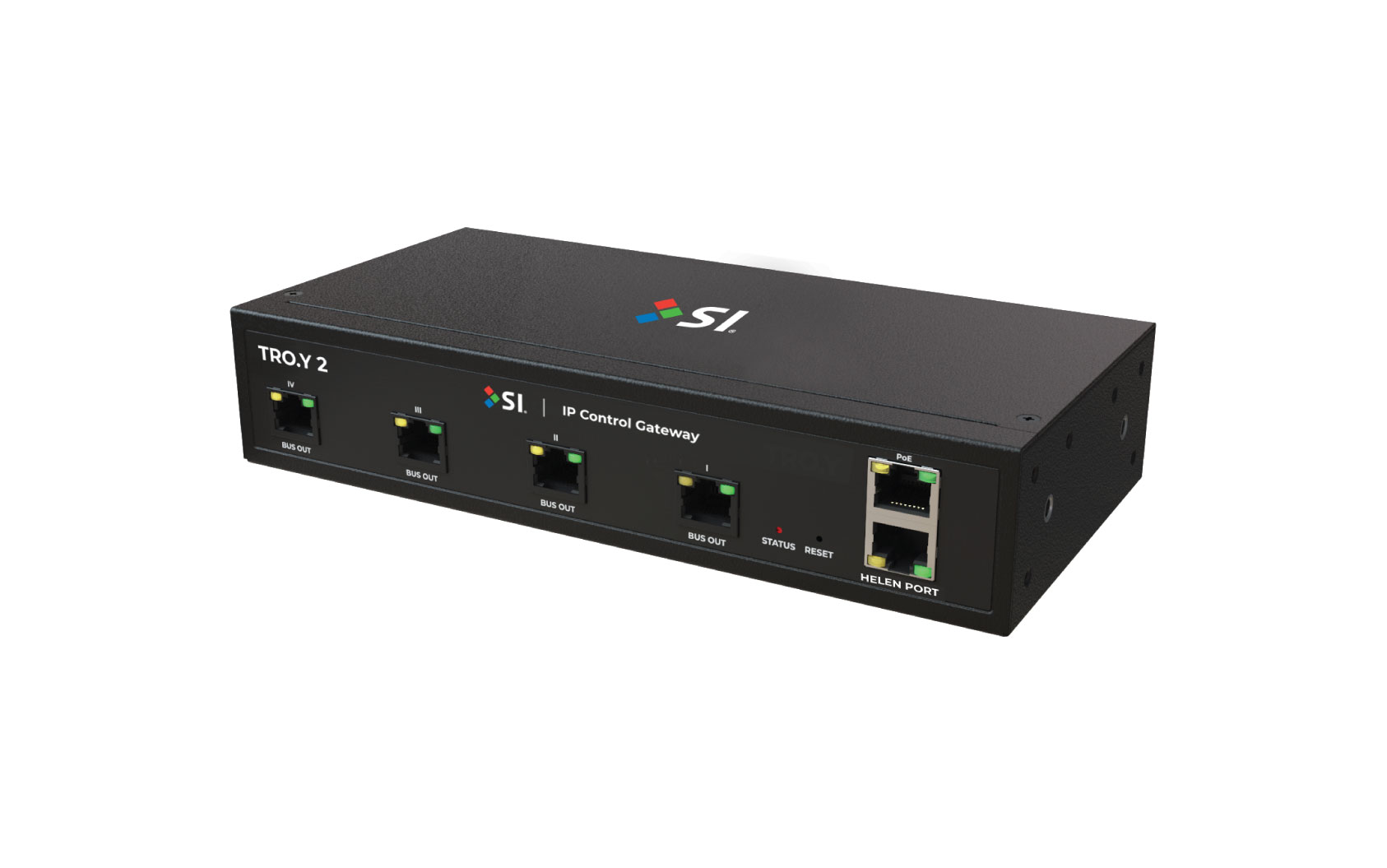
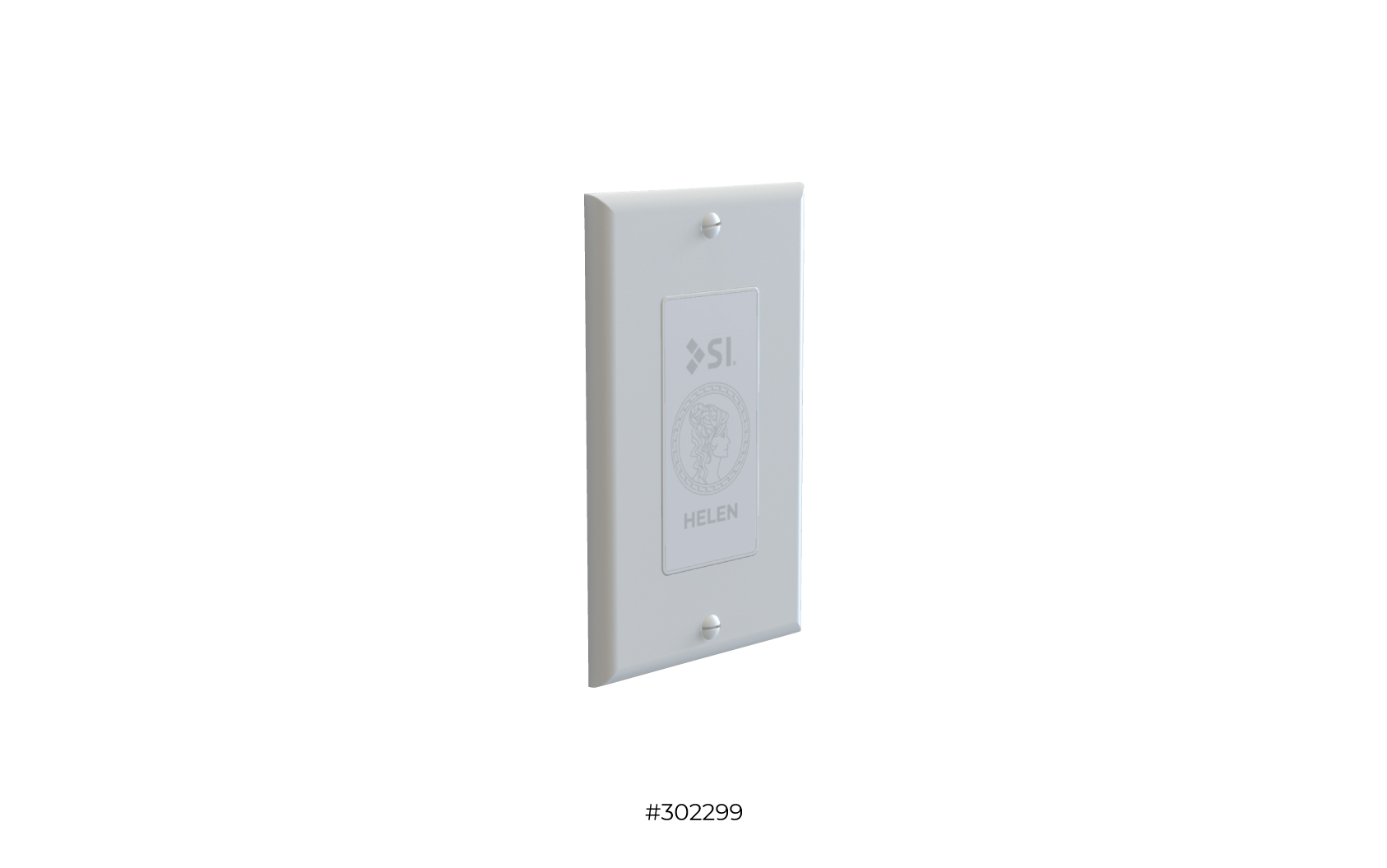
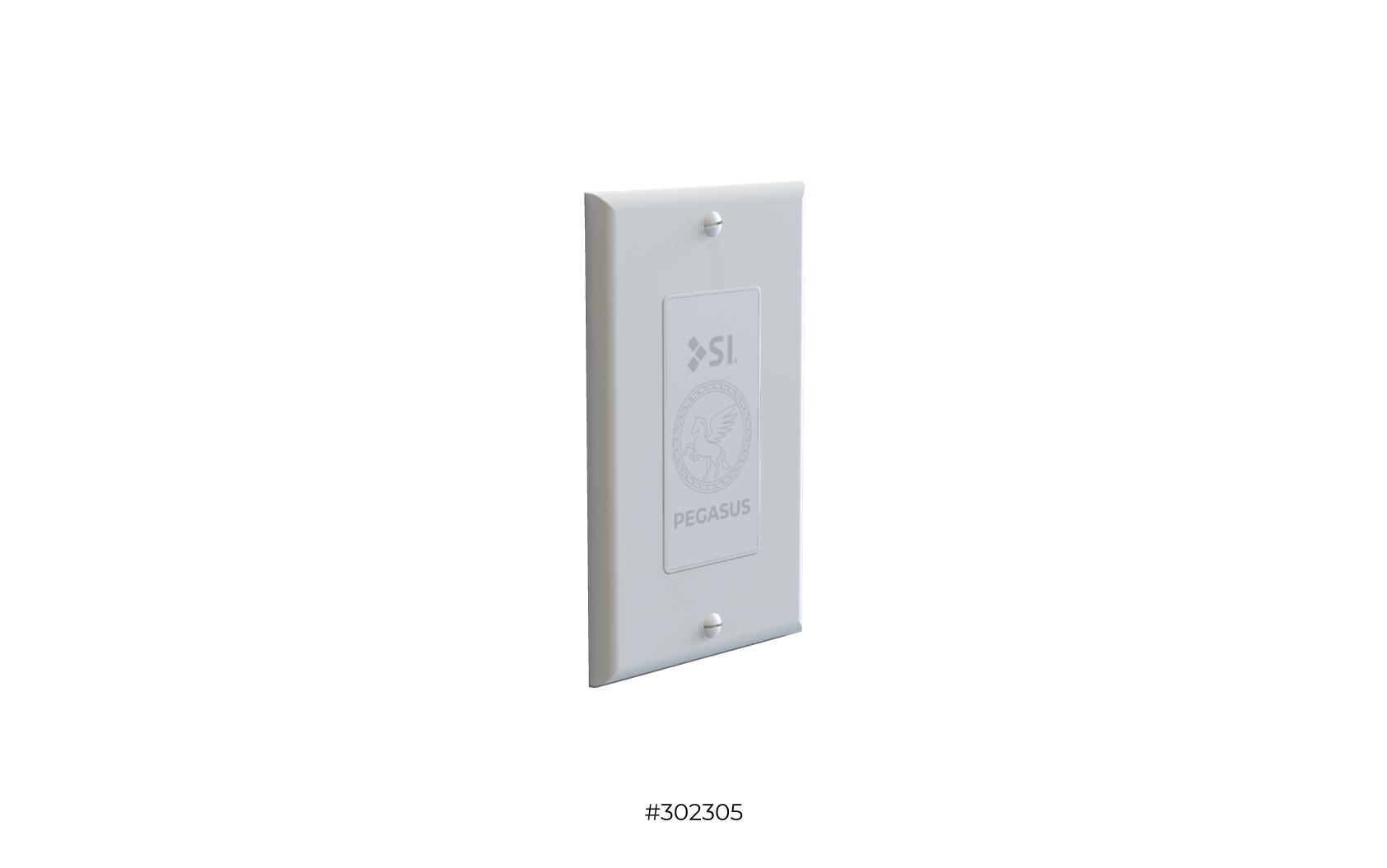
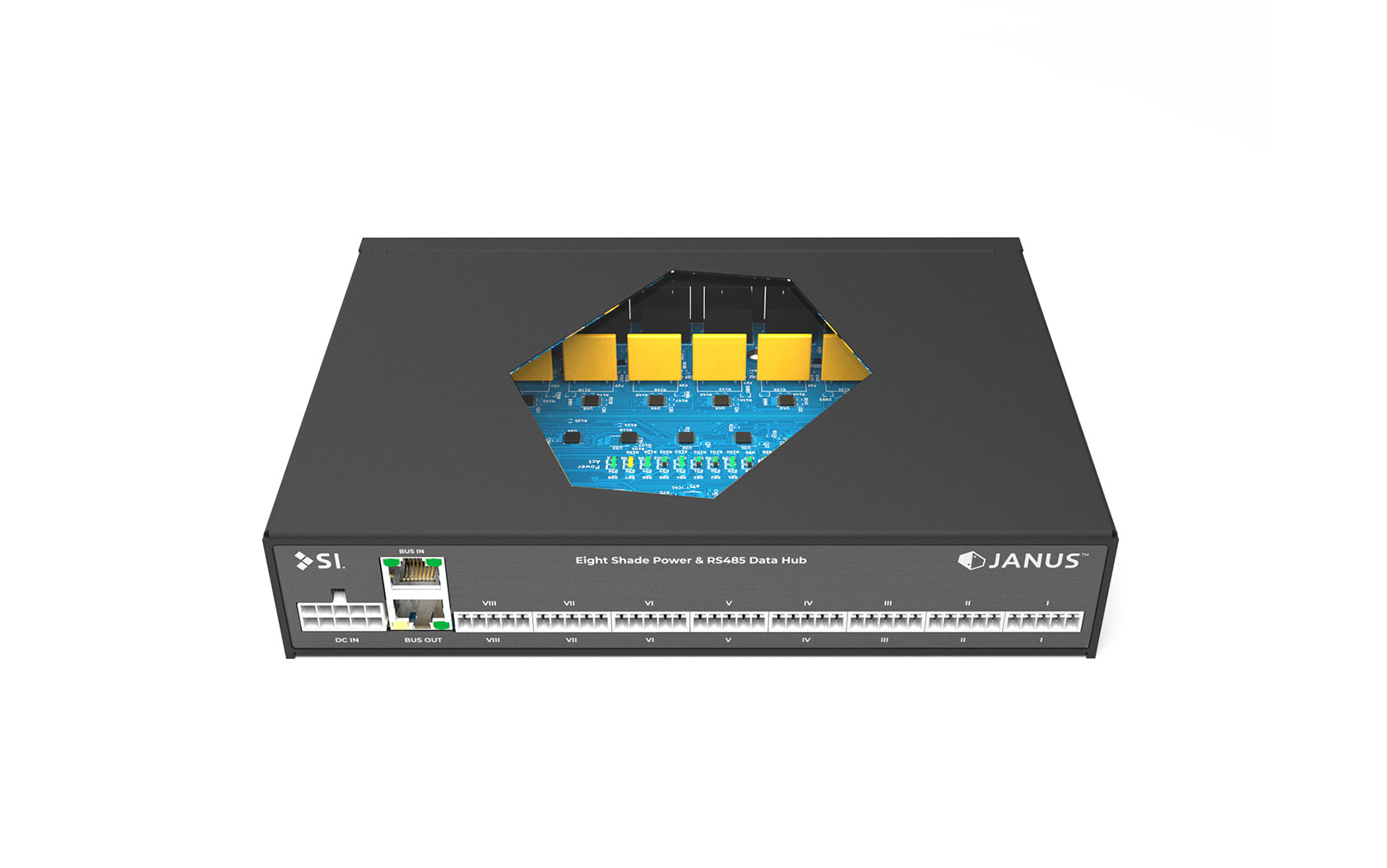
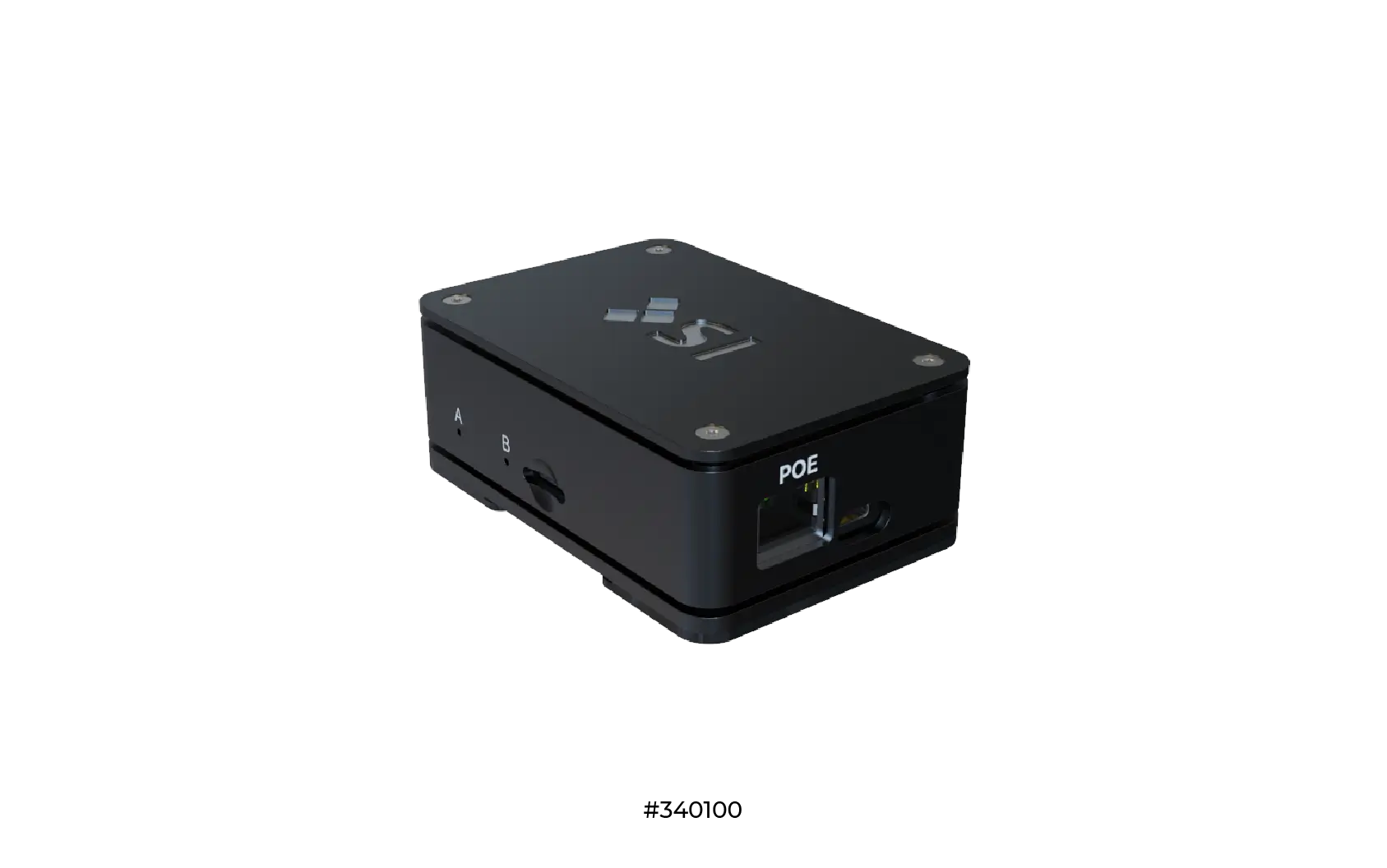
Check out our TRO.Y Quick Setup Guide for step-by-step instructions on network discovery, firmware updates, adding motors, and 3rd party integration.
What TRO.Y 2 issue are you experiencing?
Finding and accessing TRO.Y
TRO.Y 2 requires PoE (Power over Ethernet). Connect to a PoE switch or use the included PoE injector. Verify LEDs are lit on the front of the unit.
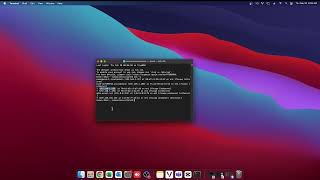
Windows: Open Command Prompt, type
ping troy, press Enter
Mac: Open Terminal, type
ping troy.local, press Enter
If successful, the IP address will be displayed. Enter
that IP in your browser.
1. Open File Explorer and click Network
in left panel
2. Look for SI_TRO.Y under "Other Devices"
3. Double-click to open in browser, or right-click →
Properties for IP address
Type arp -a in Command Prompt/Terminal
Look for MAC address starting with 70:B3:D5
or 58:76:07 — the IP next to it is your
TRO.Y
Connect directly to TRO.Y using the
fallback IP: 169.254.169.254
1. Connect laptop directly to TRO.Y with Ethernet cable
2. Set your computer's IP to 169.254.169.X
(X = 1-250)
3. Subnet mask: 255.255.255.0
4. Press the Reset button on TRO.Y (red
LED will flash)
5. Navigate to 169.254.169.254 in browser
• Use Chrome for best compatibility
• Clear browser cache if page won't load
• Always use TRO.Y's Back button (not
browser back) to avoid data loss
Press the Reset button on TRO.Y to enable
security bypass mode for 5 minutes,
then refresh your browser.
Note: SI Support cannot reset or recover
lost passwords.
Updating TRO.Y firmware
Do NOT power off TRO.Y or leave the GUI while firmware is updating!
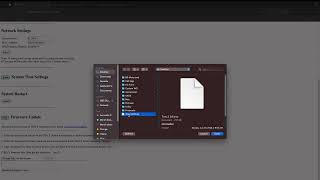
If you only see the firmware update page (not the regular TRO.Y GUI), this means TRO.Y does not have firmware installed. Upload the latest firmware to get started.
1. Go to System Settings at top of screen
2. Scroll to bottom and click Show next
to Firmware Updates
3. Click Choose File and select the
firmware file
4. Press the Reset button on TRO.Y (red
LED should flash)
5. Click Submit to start upload
6. Wait for "result": "good" in Results
box
7. Click System Restart button
Press the Reset button again, then press Submit again.
TRO.Y not responding
Power LED (PWR): Solid = powered on
Network LED (NET): Blinking = network
activity
Bus LEDs (1-4): Activity on RS-485 ports
Helen LED: Zigbee coordinator activity
1. Power cycle TRO.Y - disconnect PoE
for 30 seconds, reconnect
2. Check PoE source - try a different
PoE port or injector
3. Check network cable - try a different
cable
4. Factory reset - press and hold Reset
button until all LEDs turn off
Short press: Security bypass (5 min
GUI access)
Long press (until LEDs off): Factory
reset - erases all settings
Configuring network settings
Before configuring TRO.Y, verify network connectivity:
• Confirm network switch/router is powered and functioning
• Verify Ethernet cable is securely connected at both
ends
• Test network connection with another device
• Check for VLAN or firewall restrictions that may block
TRO.Y
If using 3rd party control systems, it is recommended to set TRO.Y to Static IP.
1. Go to System Settings at top of screen
2. Turn DHCP OFF
3. Enter Static IP, Subnet Mask,
and Gateway
4. Scroll down and click Restart
If using Static IP, also reserve the MAC address in your router settings for stability. TRO.Y MAC addresses start with 70:B3:D5 or 58:76:07.
What type of motor communication are you troubleshooting?
Select the communication type your motors use.
Zigbee: Uses Helen coordinator, battery
or low voltage motors (Nano, Nino LV)
RS-485: Hardwired motors, connected
via Janus or direct to TRO.Y bus
PoE: Ethernet-powered motors (SI Nino
PoE, Somfy PoE), uses IP Bridge
RTS: RF remote controlled (433MHz),
uses Pegasus bridge
What Zigbee issue are you experiencing?
Helen coordinator won't initialize
• Connect Helen Coordinator
directly to the Helen port on TRO.Y
2
• DO NOT use the supplied PoE Injector
for the Coordinator
• Max cable length: 50 feet from TRO.Y
to Helen Coordinator
• PoE Injector is only for Helen units
used as Routers
1. Go to Integration Settings then
Wireless Bridge Settings
2. Look at the PAN ID value
3. If it shows "0000", the Zigbee network
has not been created
4. Click Create Zigbee Network button
5. PAN ID should change to a random 4-digit combination
Coordinator ready: Red, Green, Blue
LEDs all solid (not flashing)
LEDs blink off every 2.5s: Already configured
as Coordinator - connect to Helen port
LEDs flash on every 2.5s: Not configured
as router yet - needs pairing
Shade/router not discovering
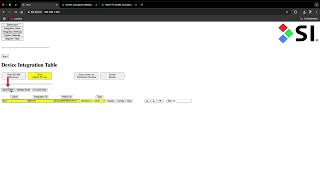
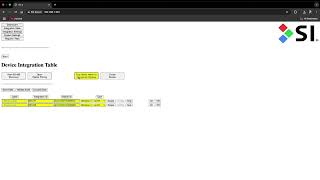
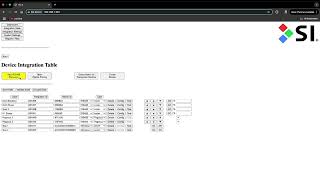
1. In TRO.Y, go to Integration Table
then Device Table
2. Click Open Zigbee Pairing (button
turns yellow)
3. Put motor into pairing mode:
Nano: Hold motor head
button for 2 jogs - LED blinks amber
Nino: Hold motor head
button for 2 jogs - LED solid red
4. Motor should jog once and appear in Device Table
5. Click Close Zigbee Pairing when done
6. Click Commit Integration Table to
save
If you purchased your Eco-System with shades, they come
pre-configured from factory.
Use Query Helen for Connected Devices
button to retrieve them.
Weak signal or devices dropping
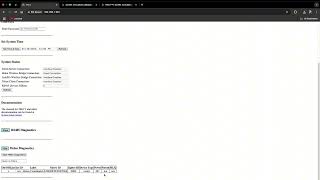
SILQ (SI Link Quality) measures signal
strength in Helen Diagnostics.
82+: Optimal signal
50-81: Acceptable for routers
Below 50: Weak - needs improvement
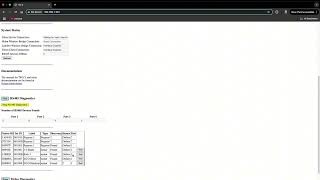
1. From TRO.Y Dashboard, scroll to bottom
2. Open Helen Diagnostics
3. Click Start Helen Diagnostics
4. Review SILQ values for each device
• Add Zigbee routers between Helen and
weak devices
• Relocate Helen to open area - avoid
metal, AV racks, behind TVs
• Space routers 15-20 ft apart for optimal
mesh
• Power cycle routers to force better
route discovery
• Change Zigbee channel if interference
suspected
Commands delayed or slow response
When controlling Zigbee motors or groups, add at least a 6-second delay between commands for smooth operation.
1. Check SILQ values in Helen Diagnostics
2. Verify TRO.Y firmware is current
3. Avoid spamming commands from apps,
remotes, or integrations
4. Check Zigbee Routing Table for clean
paths
5. Space out commands to allow motor
feedback processing
Changing Zigbee channel
Zigbee operates on 2.4 GHz (same as WiFi). WiFi channels
1, 6, 11 overlap with Zigbee channels 11-22.
Best Zigbee channels: 15, 20, or 25
(least WiFi overlap)
1. Go to Integration Settings then
Wireless Bridge Settings
2. Select channel from dropdown (recommend
15 or 25)
3. Click Change Existing Network Channel
4. Wait 10-15 seconds for change to apply
5. All devices will automatically move to new channel
Updating Helen firmware
1. Go to Integration Settings
2. Click Show next to Wireless Bridge
Settings
3. Press the Reset button on TRO.Y 2
4. Click Choose File and select the
.gbl firmware file
5. Wait for upload to complete (takes a few minutes)
If the update goes quickly, it did not take. Repeat the process - it should take a few minutes to update properly.
What RS-485 issue are you experiencing?
RS-485 motor not discovering
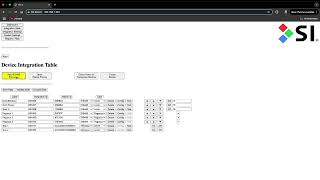
1. Go to Integration Table
2. Click Start Wired Device Discovery
3. Devices will appear as they're found
4. Click Stop Wired Device Discovery
when done
5. Click Accept Edits to save to browser
6. Click Commit Integration Table to
save to TRO.Y
• Verify proper termination at both
ends of bus
• Check for loose connections
• Use twisted pair cables (CrestNet,
Lutron, or Somfy wire preferred)
• Max cable length: 300 feet total
• Check motor has power
Divide shades into 4 segments (one per TRO.Y bus port) for best performance. Max 64 shades per port, 256 total per TRO.Y.
RS-485 motor not responding
1. Check motor power - is the motor
powered?
2. Check Integration Table - is motor
showing online?
3. Use Test button in Device Table to
jog
4. Check for address conflicts - each
motor needs unique ID
5. Check motor limits are set correctly
• Motor limits not set (motor won't move past limits)
• Address conflict with another device
• Wiring issue on bus line
• Motor power issue
Motor issues
Motors may develop encoder or limit issues that cause them to move only in small increments or not move at all.
• Motor only moves in small increments
(jogging slightly then stopping)
• Motor doesn't move at all when commanded
• Limits display as 65535 (indicates
encoder/limit memory corruption)
1. Go to Integration Table →
Device Table
2. Click Config on the affected motor
3. Click Limits button
4. Check current limit values — if either shows
65535, this indicates corruption
5. Try clicking Adjust next to Upper
Limit
6. Use UP/DOWN controls to move shade
7. Click Set to save new limit
If adjusting limits doesn't help:
1. Go to Config → Limits
→ Factory Reset
2. Confirm the reset when prompted
3. Wait for motor to reset (30-60 seconds)
4. Re-set both upper and lower limits
after reset
Factory reset will erase: Upper and lower limits, Intermediate positions, Motor address (will need to re-discover)
RS-485 intermittent communication
1. Identify problem motors using Diagnostics
Table
2. Isolate Janus units - connect each
one individually to TRO.Y bus ports (don't daisy chain)
3. Narrow down faulty motor - disconnect
all motors, reconnect one at a time
4. Inspect wiring once fault is located
• Proper termination at both ends
• No sharp bends in cables
• Proper grounding - no ground loops
• Continuity test - check for shorts
or broken wires
• Cable length - max 300 feet
Instead of daisy-chaining Janus units, connect each one individually to TRO.Y bus ports. This makes troubleshooting much easier.
Setting RS-485 motor limits
Your shades came with limits set from factory. Only adjust if needed.
1. In Device Table, click Config on
the motor
2. Click Limits button
3. Click Adjust next to Upper or Lower
Limit
4. Use controls to move shade to desired position
5. Click Set to save the limit
6. Click Back when done
RS-485 motor rotation direction
If the motor is moving in the wrong direction, you can reverse the rotation in TRO.Y.
1. Go to the Integration Table
2. Click Config next to the motor
3. Find the Rotation setting
4. Change from Standard to
Reverse (or vice versa)
5. Click Submit to save
6. Test the motor to confirm correct direction
You may need to re-set your limits after changing the rotation direction, as the up/down reference points will swap.
PoE motor issues
SI Nino PoE and Somfy PoE motors use an IP Bridge
to connect to TRO.Y.
• IP Bridge connects to network switch (PoE side)
• IP Bridge connects to TRO.Y bus (RS-485 side)
• PoE motors, IP Bridge, and TRO.Y must be on
same network
PoE motors appear and operate exactly like RS-485 motors
once discovered.
Use Start Wired Device Discovery in
Integration Table.
• Verify IP Bridge has power (PoE)
• Verify IP Bridge RS-485 connection to TRO.Y bus
• Verify PoE motors have network connection
• Check all devices are on same network/VLAN
What RTS/Pegasus issue are you experiencing?
RTS range issues
RTS operates on 433.42 MHz frequency.
Indoors: ~30 feet (varies by obstacles)
Outdoors: Up to 60 feet in ideal conditions
1. Check remote batteries - weak battery
= short range
2. Test closer - does it work at short
distance?
3. Check for interference - metal, thick
walls, other RF devices
4. Reposition antenna - extend fully,
position vertically
5. Try different remote - rule out faulty
transmitter
If range is insufficient, a Pegasus Smart Repeater can extend the signal. Install it halfway between transmitter and motor.
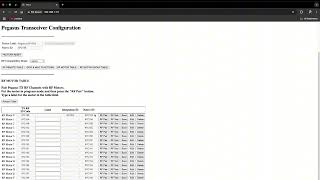
Pairing motor to Pegasus
1. Make sure remote is paired to motor and limits are
set
2. In Device Table, click Config on
Pegasus
3. Click RF Motor Table
4. Put motor in pairing mode (see below)
5. Click RF Pair for desired channel
- motor will jog
6. Click RF Test to confirm
7. Label the channel and click Save
Somfy 30 Series (LV/Wirefree): Hold
Program button on remote until jog, then hold Motor Head
button until jog
Somfy 50 Series (LV): Hold Program button
on remote until jog
SI KAOS: Hold STOP button on remote
for 5 seconds until jog
Alpha: Tap RED button on motor head
- jog, then UP+DOWN quickly, then STOP 8 times - jog
Ghost signals (motors moving without command)
• Nearby devices on 433 MHz (car remotes, baby monitors)
• Other RTS motors with same address
• Stuck button on remote
• Third-party automation triggering schedules
• Voltage spikes on power line
1. Power cycle motor - disconnect for
30 seconds
2. Clear programming - perform full
reset on motor
3. Reprogram with single trusted remote
4. Isolate interference - turn off nearby
RF devices
5. Check automation - review schedules
in TRO.Y, Bond, or control system
6. Remove batteries from unused remotes
Learning a remote to Pegasus
Select the correct mode in Pegasus Config:
Somfy: Somfy/Olibra remotes
Alpha: Alpha remotes
SI KAOS: SI KAOS remotes
Lutron: Lutron Pico remotes
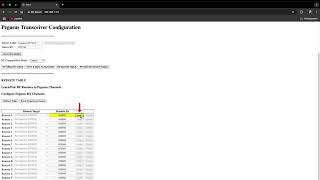
1. In Device Table, click Config on
Pegasus
2. Click RF Remote Table
3. Click Learn (button turns yellow)
4. Press program button on remote
5. Remote ID will appear when learned
6. Select target for the remote
7. Click Send Target to Device
Which integration are you setting up?
Control4, Crestron, Bond, Savant, URC, and most other
systems require Telnet/JSON Server to
be configured in TRO.Y before integration.
Josh AI and Lutron do NOT require Telnet setup.
Then select your integration:
Telnet/JSON server setup
Use Static IP or MAC reservation on TRO.Y and 3rd party processor for stability.
1. Click Integration Settings
2. Click Show on Telnet/JSON Server
Settings
3. Select TCP
4. Set Telnet port (default: 23)
5. Enter Username and Password
6. Click Submit
7. Restart TRO.Y
When connected, TRO.Y Dashboard will show "Good Connection" in System Status under Telnet Server.
Telnet configured? Continue to your integration:
Control4 integration
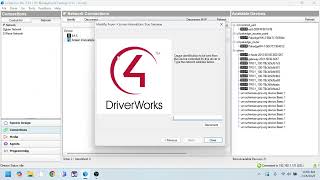
1. Search Drivers for Screen Innovations
2. Install drivers:
Screen Innovations Troy Gateway
(one instance)
Screen Innovations Blind
(one per shade)
Screen Innovations Blind Group
(one per group)
3. In Connections tab, enter TRO.Y IP address
4. In Gateway Driver, enter Username/Password
from TRO.Y Telnet settings
5. Click Discover Devices in Actions
tab
6. For each Blind driver, select shade and run
Measure Travel Time
Measure Travel Time is REQUIRED for 2-way feedback. This moves the shade to calculate travel time.
Crestron integration
Crestron Home: Uses certified extension
— limited to 64 shades per TRO.Y
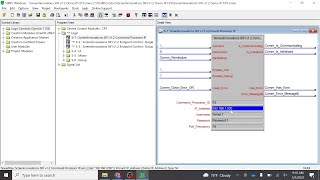
SIMPL/Home Works: Uses Telnet/JSON API
— no shade limit
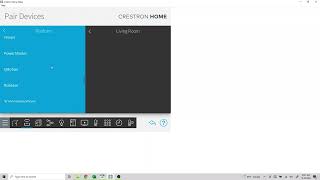
1. Install Screen Innovations TRO.Y
extension in Crestron Home
2. In TRO.Y, ensure Telnet is configured
3. In Crestron Home, add the extension
4. Enter TRO.Y IP address
5. Enter Telnet username and password
6. Extension will discover shades
7. Assign shades to rooms
Josh AI integration
Josh AI uses auto-discovery to find TRO.Y on your network. No Telnet/JSON setup is needed.
1. Log in to the Josh Portal
2. Navigate to
Portal → System Setup → Configure Devices
3. If TRO.Y was auto-discovered, it will appear in the
list
4. Select Shade Innovations TROY and
click Authorize
5. Enter TRO.Y IP address, then press
the Reset button on TRO.Y (red LED will
blink)
6. Click Next — devices will populate
under the Areas tab
7. Assign shades to rooms by dragging/dropping or using
the gear icon
Bond Bridge Pro integration
TRO.Y only supports 1 Telnet connection.
If using Bond with Control4 or Crestron:
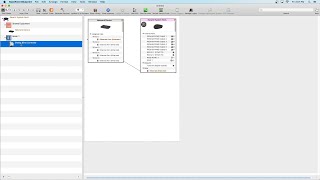
1. Integrate Bond into TRO.Y
2. Use 3rd party driver to control Bond (not TRO.Y directly)
3. This frees TRO.Y Telnet for Bond
1. Find Bond's IP address in the Bond app (My Devices
→ Bond → Advanced Settings → Network Info)
2. Open browser, enter Bond's IP followed by
/troy
Example: http://192.168.1.100/troy
3. Enter TRO.Y IP address, click
Save
4. In TRO.Y, configure Telnet/JSON Server
5. Reboot both TRO.Y and Bond Bridge
Pro
Lutron integration
TRO.Y integrates with:
✓ QSC (Quantum Software Connection)
✓ RadioRA 2
✓ RadioRA 2 Select
✓ Caseta Pro
✗ NOT compatible: QSX, RadioRA 3
Step 1 - Enable Telnet on Lutron:
1. In Lutron app, go to Tools (gear icon)
2. Select Advanced → Integration
3. Enable Telnet Support
Step 2 - Configure TRO.Y Telnet Client:
1. In TRO.Y, go to Integration Settings
2. Click Show on Telnet Client Settings
3. Click Enable
4. Enter Lutron processor IP address
5. Enter Port (default: 23)
6. Enter credentials — default: lutron / integration
7. Click Submit, then Restart TRO.Y
Savant / URC / other systems
1. Install Screen Innovations UAI+ Profile
from Savant Community
2. Configure TRO.Y Telnet settings
3. In Savant Blueprint, add the profile
4. Enter TRO.Y connection details
5. Discover and assign shades
Any system supporting Telnet/TCP can integrate with TRO.Y:
1. Configure TRO.Y Telnet settings
2. Create TCP connection in your control system
3. Use JSON API commands
4. Refer to TRO.Y API documentation for command format
What programming task do you need help with?
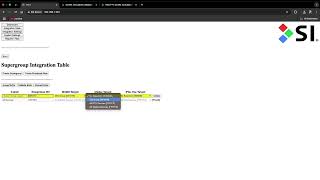
Creating groups
• RS-485 Groups and
Zigbee Groups are created in TRO.Y's
Group Table
• RTS Groups are created in the
Pegasus RF Motor Table (NOT in Group
Table)
• To combine different communication types, use a
Super Group
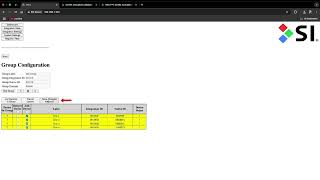
1. Go to Integration Table →
Group Table
2. Click Create Group
3. Enter a label for the group
4. Select type: RS485 or
Wireless (Zigbee)
5. Click Accept Edits
6. Click Config on the new group
7. Check the boxes for shades to include
8. Click Save Changes to Group
9. Click Commit Integration Table to
save
Creating scenes and events
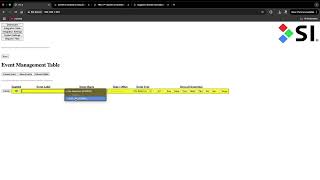
Scenes and Events can ONLY be triggered directly from TRO.Y. They cannot be triggered by 3rd party control systems.
Scene: A preset sequence of commands
(up to 8) that executes when triggered
Event: Automatically triggers a scene
at a designated time (sunrise, sunset, or specific time)
1. Go to Integration Table →
Scene Table
2. Click Create Scene
3. Enter a Label and
Integration ID
4. Click Accept Edits
5. Click Show Config to open the command
editor
6. Add commands (up to 8 per scene)
7. Click Save after adding each command
8. Click Commit Integration Table
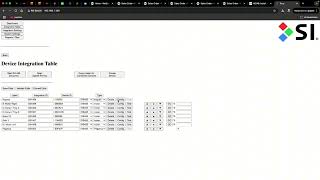
Programming keypads (DecoFlex)
1. Connect keypad to RS-485 bus
2. In Integration Table, click
Start Wired Device Discovery
3. Keypad will appear in device list
4. Click Config on keypad
Target Destination Mode: Buttons 1-5
select presets, 6-8 are UP/STOP/DOWN
Standard Programmable: Each button can
have Press/Hold/Release commands
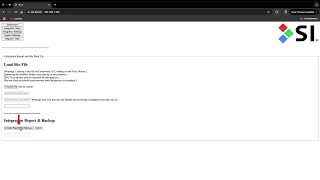
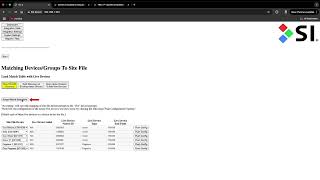
Site backup and restore
Site File will only backup RS-485 devices. Wireless (Zigbee) devices will NOT be backed up.
1. Click Report button
2. Click Create Report / Site Backup
3. Wait for progress bar to complete (1-2 minutes)
4. Download the .csv file
Loading will overwrite all settings
Do NOT close browser until complete
TRO.Y may need to reboot
Commit Integration Table after loading
SI Eco-System commissioning checklist
Open the full interactive commissioning checklist for step-by-step guidance through system setup.
Great - glad we got it working!
Here are some helpful resources for future reference:
Let's get you some help
Please provide as much detail as possible when submitting your request.
Your troubleshooting path will be included with your support request.
• Sales Order number (SHXXXXXX) or Project ID
• TRO.Y firmware version
• Helen firmware version (if applicable)
• Motor types in system (Zigbee, RS-485, PoE, RTS)
• 3rd party control system (if applicable)
• Detailed description of issue
• Screenshots or videos if possible


Comments
0 comments
Please sign in to leave a comment.