
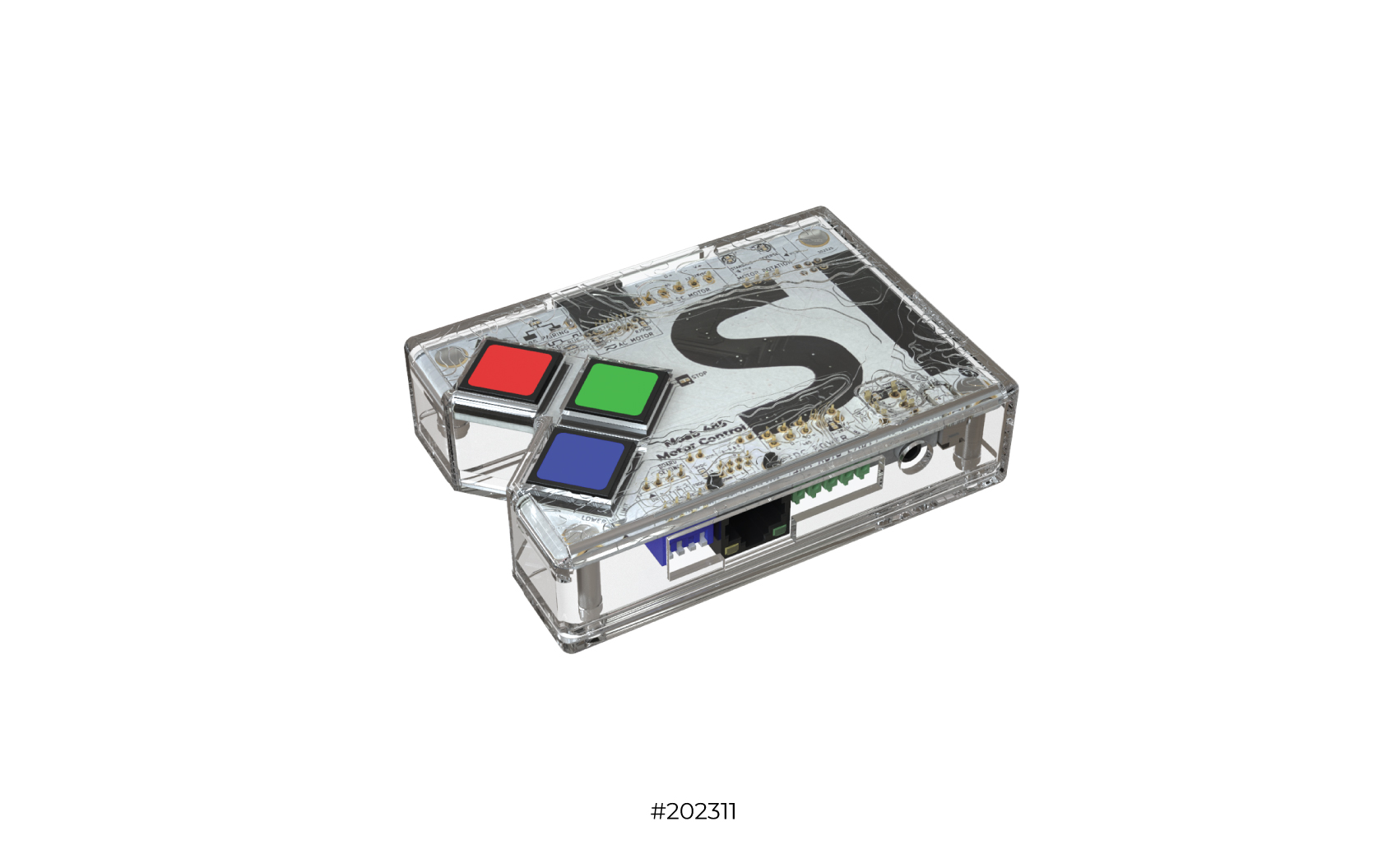
MOAB Troubleshooting Wizard
Let's diagnose and fix your issue step by step
What issue are you experiencing?
Select the option that best describes your problem.
For most troubleshooting, plug the MOAB directly into the motor (not extended) to rule out cable issues.
Is the MOAB getting power?
Check if any LEDs on the MOAB board are illuminated.
First, check DIP Switch #3
DIP Switch #3 controls the LEDs. If it's OFF, the LEDs won't illuminate even if MOAB has power.
LEDs are now visible
Your MOAB has power. DIP 3 simply controls LED visibility. Now you can continue troubleshooting with the LEDs as indicators.
Is your screen AC or DC powered?
AC motors power the MOAB automatically
— unless the cable is extended more than 50 feet.
DC motors always require a separate
24V power supply to the MOAB.
AC Motor — Check cable length and power
1. Is the MOAB cable extended more than 50 feet?
If so, you need a 24V power supply
2. Is the screen receiving AC power? Check breaker/outlet
3. Is the motor cable securely connected at both ends?
DC Motor — 24V power supply required
Connect a 24V power supply to the V+ and V- terminals on the bottom of the MOAB board.
DC-powered motors do not supply power to the MOAB through the motor cable. External 24V is always required.
Check the GREEN ACT (Activity) LED
The ACT LED should only blink when commands are sent, buttons are pressed, or during programming. It should NOT be solid.
Does the motor have limits set?
The screen will not move if the motor
has no limits set. Limits are set at the factory, but
will be erased if:
• The motor was factory reset
• It's a replacement motor (shipped without limits)
Set motor limits
1. Put all 4 DIP switches in the ON
position (Programming Mode)
2. Use RED/BLUE buttons to position screen at
upper limit
3. Hold RED + GREEN until LEDs flash
— release
4. Position screen at lower limit
5. Hold BLUE + GREEN until LEDs flash
— release
6. Flip DIP 1 to OFF (User Mode)
Solid ACT LED indicates constant activity
The ACT (Activity) LED should only blink during commands or programming. A solid ACT LED means something is causing constant activity — usually a bad termination or cable damage.
Remove the MOAB from any extension cable and plug it directly into the motor. Then try setting the limits while directly connected.
The problem is in your extension cable
Since it works when plugged directly into the motor,
the issue is in your extension cable:
• Bad termination / poor crimp
• Unseen damage to the wire
• Wrong pinout (T568A vs T568B mixed)
• Cable run over 50' on AC motor (needs 24V supply)
How long is your cable run?
Issue may be with motor or MOAB
If it still doesn't work when plugged directly into the motor, the issue is not the extension cable.
1. Check the 485 Pairing LED — is it ON? (needs re-pairing)
2. Try a factory reset (DIP 1 ON, hold all 3 buttons)
3. Re-pair and set limits
Check the 485 Pairing LED
This LED is located to the left of the RJ45 Motor Port.
LED OFF = Motor is paired
LED ON = Motor needs pairing
Pair the motor to MOAB
1. Put MOAB in Programming Mode — all
four DIP switches in the ON (up) position
2. Press and hold the GREEN button
3. Wait until you see flashing on the board
4. Release — the 485 Pairing LED should turn OFF
5. Now set your limits
The red LED above "485 Pairing" on the top left of the MOAB will turn OFF when successfully paired.
Is MOAB in User Mode?
Check DIP Switch #1 position.
DIP 1 OFF (down) = User Mode
DIP 1 ON (up) = Programming Mode
Switch to User Mode
Flip DIP Switch #1 to the OFF (down) position to enter User Mode.
In User Mode, a single press on RED/UP moves to upper limit, BLUE/DOWN moves to lower limit.
Try a factory reset
1. Put MOAB in Programming Mode (all
DIP switches ON)
2. Press and hold RED + GREEN + BLUE
buttons together
3. Wait until all LEDs begin to flash
4. Release — you should see the
485 Pairing LED turn ON (confirms reset)
5. Re-pair motor (hold GREEN until 485 LED turns OFF)
6. Set motor direction and limits
7. Switch to User Mode (DIP 1 OFF)
Factory reset erases all limits and motor direction settings. You'll need to set both motor direction and limits again.
AC motor cable runs over 50' require additional power
When using an AC-powered motor with cable runs over 50 feet, you must add a 24V power supply to the MOAB to provide adequate power.
The 50-foot limit only applies to AC motors. The 24V supply compensates for voltage drop over distance.
Check your cable terminations
1. Verify you're using T568B termination
throughout
2. Check all crimps — re-crimp if any wires are loose
3. Test continuity end-to-end on each conductor
4. Look for any nicks or damage to the cable
Bad crimps, wrong pinout (T568A vs T568B mixed), or cable damage from install.
Fix motor rotation direction
1. Put MOAB in Programming Mode (all
DIP switches ON)
2. Press and hold RED + BLUE buttons
together
3. Wait until the LEDs begin to blink
4. Release — you should see the
motor direction LED change
5. Test with small movements using RED and BLUE buttons
Motor direction can only be changed in Programming Mode (all 4 DIP switches ON).
Motor direction won't change
If the motor direction LED does not change when holding RED + BLUE, a reset or re-pair may be required.
1. All DIP switches ON (Programming Mode)
2. Hold RED + GREEN + BLUE until LEDs flash
3. Re-pair motor (hold GREEN)
4. Set direction (hold RED + BLUE until LEDs blink)
5. Set limits
Is the MOAB extended from the screen?
If your screen is acting like it lost its limits or won't save limits, and the MOAB is extended from the screen, this is often a cable issue.
Check for cable issues first
When the MOAB is extended and the screen acts like it lost its limits or won't save them, look at the MOAB — if you see a solid green ACT light, something in the wire is causing constant activity (bad termination or cable damage).
Remove the MOAB from the extension and plug it directly into the motor. Try setting limits while directly connected.
Were limits set in Programming Mode?
Limits must be set with all DIP switches in the ON position (Programming Mode).
• Upper limit: Position screen, hold
RED + GREEN until LEDs flash
• Lower limit: Position screen, hold
BLUE + GREEN until LEDs flash
Re-set limits in Programming Mode
1. Put all four DIP switches in the ON
position (Programming Mode)
2. Use RED/BLUE buttons to position screen at upper limit
3. Hold RED + GREEN until LEDs flash
— release
4. Position screen at lower limit
5. Hold BLUE + GREEN until LEDs flash
— release
6. Flip DIP 1 to OFF (User Mode)
Did you switch back to User Mode after setting limits?
Switch to User Mode
Flip DIP Switch #1 to OFF to enter User Mode. Your saved limits should now work.
Try a factory reset and reprogram
1. All DIP switches ON (Programming Mode)
2. Hold RED + GREEN + BLUE until LEDs flash
3. Re-pair motor (hold GREEN until 485 LED turns OFF)
4. Set motor direction (hold RED + BLUE until LEDs blink)
5. Set upper and lower limits
6. Switch to User Mode (DIP 1 OFF)
After any motor reset, you must set both motor direction and limits again.
Is DIP Switch #2 ON?
DIP #2 enables/disables the IR receiver.
DIP 2 ON = IR Receiver enabled
DIP 2 OFF = IR Receiver disabled
Enable the IR Receiver
Flip DIP Switch #2 to the ON (up) position to enable the IR receiver.
Is MOAB in User Mode?
Switch to User Mode
IR control only works in User Mode. Flip DIP Switch #1 to OFF.
Check the IR sensor and remote
The IR remote will only work if limits are set on the motor AND MOAB is in User Mode (DIP 1 OFF).
Look at the bottom right of the MOAB. You should see a small black square part — this is the IR sensor. It can be broken off to extend, so make sure it's still attached or connected via extension cable.
Use your phone's front-facing camera and point the IR remote at it. Press a button on the remote — you should see a bluish-purple light through the camera. This confirms the remote is transmitting.
IR sensor is missing or detached
The small black IR sensor part can be broken off from
the MOAB board to extend its placement. If it's been
removed:
1. Check if it's connected via the
IR extension cable
2. The sensor should be placed where it has line of sight
to the remote
3. If the sensor is completely missing, contact support
IR remote may need new batteries
1. Replace the batteries in the IR remote
2. Re-test with phone camera
3. If still no light, the remote may be defective
Set limits first, then test IR
The IR remote will only work after limits are set on the motor.
1. Put MOAB in Programming Mode (all DIP switches ON)
2. Set upper limit: position screen, hold RED + GREEN
3. Set lower limit: position screen, hold BLUE + GREEN
4. Switch to User Mode (DIP 1 OFF)
5. Test IR remote
Is MOAB in User Mode?
12v trigger only works in User Mode (DIP 1 OFF).
Switch to User Mode
Flip DIP Switch #1 to OFF to enter User Mode.
Is the 3.5mm plug fully seated?
The hole in the MOAB plastic case may prevent the plug
from fully seating. Try these solutions:
• Remove the plastic case and try again
• Drill out the hole in the plastic
cover to accommodate a larger plug
Check source device settings
1. Using correct cable: 3.5mm mono TS
phone jack
2. Source device has 12v trigger output enabled
in its settings
3. Voltage output is in range: 7-12v DC
4. Check wiring polarity
When 7-12v is applied, screen moves to lower limit. When voltage is removed, screen moves to upper limit.
Are you using the correct port?
Dry contact uses the bottom RJ45 (black port) — NOT the motor port (top RJ45).
Move cable to the correct port
Connect your dry contact cable to the bottom RJ45 port (black), not the top motor port.
Verify wiring pinout
Using T568B termination:
UP: Pins 3 + 8 (White/Green + Brown)
DOWN: Pins 6 + 8 (Green + Brown)
STOP: Pins 3 + 6 + 8
MOAB must be in User Mode (DIP 1 OFF) for dry contact to work.
Is DIP Switch #4 ON?
DIP #4 enables/disables the MOAB buttons.
DIP 4 ON = Buttons enabled
DIP 4 OFF = Buttons disabled
Enable the buttons
Flip DIP Switch #4 to the ON (up) position to enable the MOAB buttons.
Possible board issue
If DIP 4 is ON and the buttons still don't respond, there may be a hardware issue with the MOAB board.
Are you using the correct port?
Keypad connects to the bottom RJ45 (black port) — NOT the motor port.
Move keypad to correct port
Connect the keypad RJ45 to the bottom black RJ45 port.
Is MOAB in User Mode?
Keypad pairing requires User Mode (DIP 1 OFF).
Switch to User Mode
Flip DIP Switch #1 to OFF for keypad pairing.
Keypad pairing sequence
Follow these steps exactly:
1. Press and hold BLUE or RED button
until LED blinks
2. Wait for Red Pairing LED and Green ACT LED to stop
flashing
3. Press and hold GREEN button until
LED blinks
4. Within 10 seconds: Press the Group/Preset
number on keypad, then STOP
5. LEDs will stop flashing when paired
You only have 10 seconds after the GREEN button to complete the keypad button press.
What type of motor and cable run?
For troubleshooting, always try plugging the MOAB directly into the motor first to rule out cable issues.
Is the GREEN ACT LED solid in User Mode?
The ACT (Activity) LED should only blink during commands, button presses, or programming. A solid ACT LED indicates constant activity — usually a short or bad termination in the cable.
Check termination and continuity
1. Using T568B termination at both ends
2. All crimps are solid — no loose wires
3. Test continuity on each conductor
end-to-end
4. No cable damage, kinks, or tight bends
Mixing T568A and T568B, bad crimps, or using the wrong cable type (must be Cat5e or Cat6).
Great — glad we got it working!
Your MOAB troubleshooting is complete. If you run into other issues, use the Start Over button or check the full MOAB Install and Setup Guide.
Our Help Center has videos and articles covering everything. You can also chat with our AI assistant for quick answers.
Let's get you some help
We've captured your troubleshooting path to help our team resolve this faster.
Watch our MOAB Troubleshooting Video — it may have the answer you need.
Diagnostic Summary:
Click below to submit a support request. The diagnostic path will be included to help us assist you faster.


Comments
0 comments
Please sign in to leave a comment.